How to Make a Website ADA Compliant
A step-by-step program for ADA compliance: what the standard is, how to baseline, what to fix first, who does the work, and how to prove it afterwards.
Almost every team asking this question is asking a slightly different one underneath it. Some want to know what the law requires. Some already know and want to know where to start. Some have a deadline. Some have a letter. This guide is written to be useful for all four, in the order the work actually happens.
The short answer
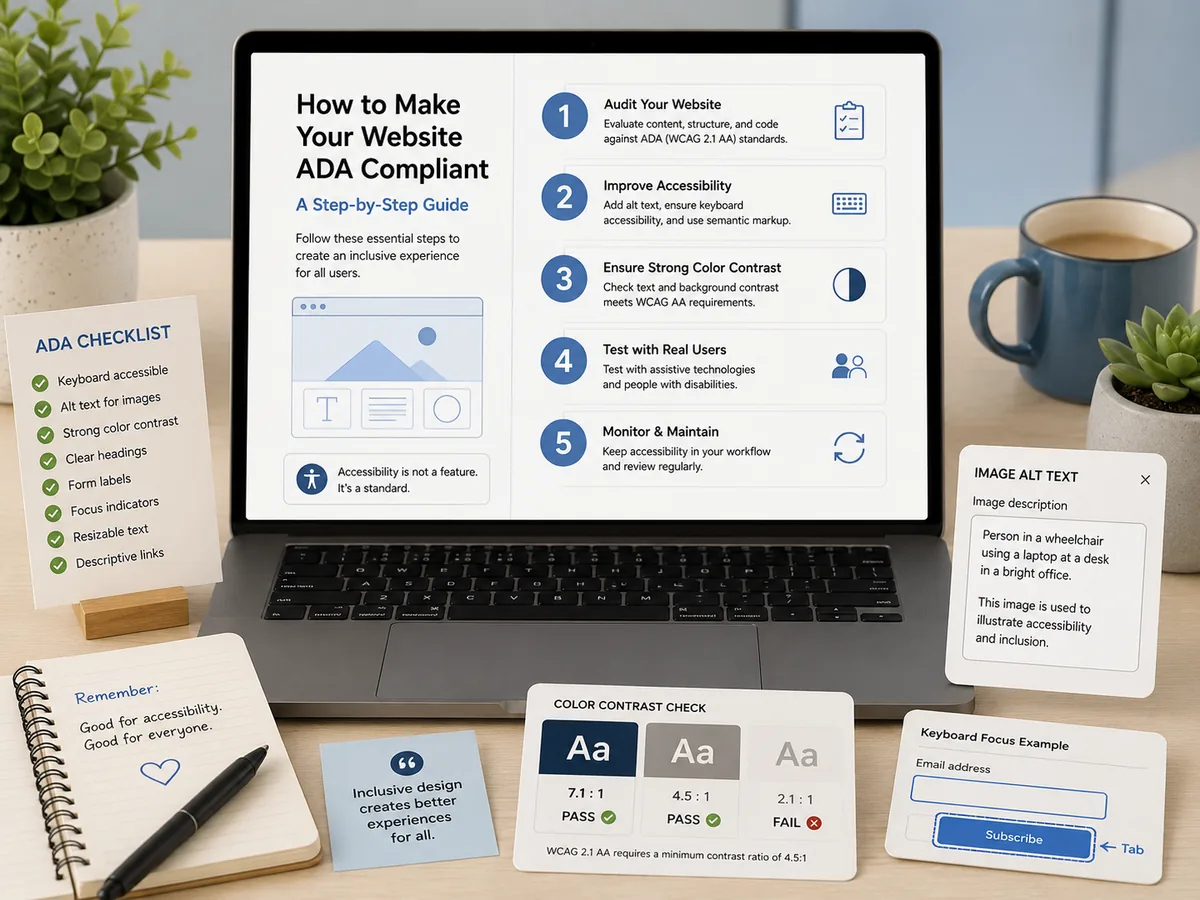
Making a website ADA compliant means conforming to WCAG 2.1 Level AA in the source your server delivers, and being able to demonstrate it. The program has six steps: understand which standard applies to you, baseline the whole site, prioritize by severity and reach, fix templates before pages, verify with re-scans, and monitor continuously while keeping dated evidence. There is no product that does this for you automatically, and any vendor implying otherwise is describing something that does not exist.
Step 1: Know which standard applies
The ADA itself does not enumerate technical requirements for websites. What fills that gap is the Web Content Accessibility Guidelines, and for public entities the Department of Justice has now named a specific version.
The DOJ’s Title II rule for state and local government sets WCAG 2.1 Level AA as the standard, with compliance dates of April 26, 2027 for entities serving populations of 50,000 or more and April 26, 2028 for smaller entities and special district governments, per the DOJ fact sheet on the web and mobile app rule. Public colleges and universities are covered. We break the scope down further in our Title II deadline explainer.
Private businesses serving the public are generally addressed under Title III, where there is no fixed federal date for web content. That sounds like less pressure and usually is not: exposure is continuous rather than scheduled, and plaintiffs cite the same WCAG criteria.
Practical recommendation regardless of which applies to you: test against WCAG 2.2 AA. It is backward compatible, so conforming to 2.2 also satisfies 2.1 and 2.0 targets, and it adds criteria covering mobile interaction, authentication, and cognitive load. There is no downside.
Step 2: Baseline the whole site
You cannot prioritize what you have not measured.
Run a full-site crawl, not a page check. The homepage is the single least representative page you own, because it is the most maintained and most reviewed. The violations live in department subsites, the catalog system, forms, archives, and the pages that were built to a deadline three years ago.
A useful baseline gives you a score per property, per-page results naming the exact failing element and the criterion it breaks, and an inventory of documents. If a finding does not tell you which element on which page, you cannot remediate from it.
Set expectations honestly at this point, especially with leadership. The first score will be low. On most sites that have never been tested it is a D or an F, and that is normal rather than a crisis. WebAIM’s annual study of the top one million home pages, run in February 2026, found detected WCAG failures on 95.9 percent of home pages, averaging 56.1 errors per page. Your baseline is not evidence that someone was negligent. It is a starting coordinate.
Step 3: Understand what automation can and cannot do
This determines how you staff the program, so it belongs before the fixing rather than after.
Automated testing detects roughly a third to 40 percent of WCAG success criteria. The W3C states it directly in its guidance on evaluating accessibility: “no tool alone can determine if a site meets accessibility standards. Knowledgeable human evaluation is required to determine if a site is accessible.”
What machines do well:
- Detect missing
altattributes, unlabeled form fields, empty links and buttons, missing page language - Calculate contrast ratios precisely across every page
- Find skipped heading levels and missing landmarks
- Do all of the above across thousands of pages, repeatedly, at no marginal cost
What still requires a person:
- Whether alternative text is actually meaningful rather than merely present
- Whether reading order makes sense in an unusual layout
- Whether an error message explains how to correct the problem
- Whether a keyboard-only or screen reader user can complete each critical task end to end
- Whether a custom widget behaves correctly, not just whether it carries the right attributes
The good news is that the machine-detectable portion is where the volume is. In the WebAIM data, six failure types accounted for 96 percent of all errors found: low contrast text, missing image alternative text, missing form input labels, empty links, empty buttons, and missing document language. All six are detectable, and nearly all are template-level.
Step 4: Fix in the right order
Sort by severity and by reach, then work the intersection.
Severity distinguishes a keyboard trap that blocks an application form from a decorative image with a redundant alt attribute. Reach distinguishes a violation in the shared header, which appears on every page, from one on a single archived post.
Then fix in this sequence:
- Global layout. Skip link, landmark regions, heading hierarchy, visible focus indicators.
- Design system. Contrast pairs, focus styles, target sizes, the standard pattern for labelling form fields.
- Shared components. Navigation, cards, modals, date pickers, carousels, accordions. Test each with a keyboard alone before declaring it done.
- Templates. Page types that generate many instances: program pages, news posts, directory entries, event listings.
- Individual pages and content. By this point, a much shorter list.
- Documents. Usually the longest tail, covered below.
For the specific techniques that satisfy each criterion, the W3C’s How to Meet WCAG quick reference is the authoritative working reference. Our ADA website remediation guide goes deeper on sequencing a large fix list.
Step 5: Do not skip the documents
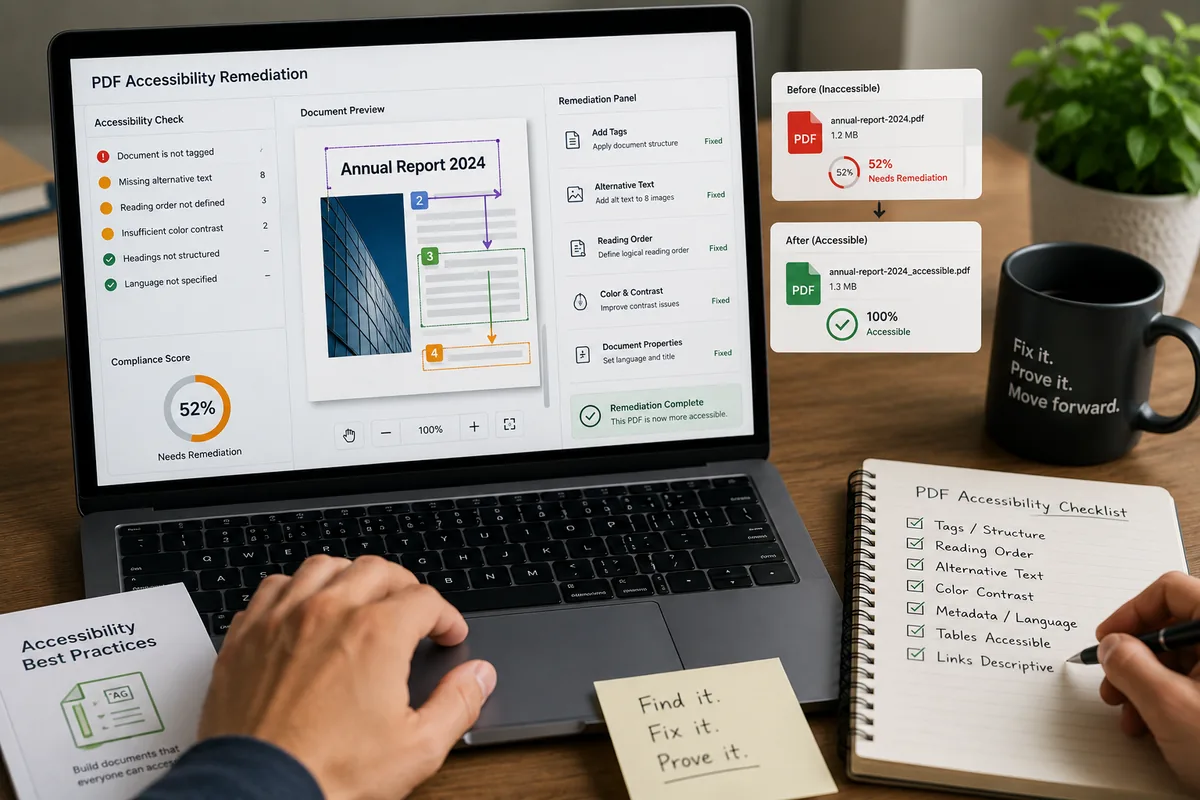
If your organization publishes PDFs, they are in scope, and on institutional sites they are frequently the largest untracked liability. Catalogs, board minutes, forms, and policies accumulate for years untagged, and scanned documents may have no text layer at all, meaning a screen reader encounters an image of a page and nothing more.
Triage by current use. Application forms, financial aid materials, current catalogs, and meeting notices come first because they are tied to a service someone needs today.
Before remediating, ask whether the document should exist as a document. Federal guidance on creating accessible PDFs says to prioritize HTML and use PDFs only when necessary. Converting a frequently used PDF form into an accessible web form is often less work than tagging it, and the result is better for everyone.
Step 6: Decide who does the work
Three honest options, and the choice usually comes down to capacity rather than preference.
Your own team, if you have developers with room on the roadmap and someone who owns the program. Cheapest, and the most likely to stall, because accessibility competes with every other priority.
A service, when capacity is the binding constraint. Engineers work in your codebase or CMS, change the source, and re-scan to verify. What you own afterward is a genuinely better site.
An overlay, which is the option to be careful with. A script running in the visitor’s browser cannot change the HTML your server sends, and the served HTML is what an investigator, a procurement reviewer, or a plaintiff’s expert tests. Overlays have drawn both litigation and regulatory scrutiny in the United States. They are a presentation-layer convenience, not a compliance record.
If you are weighing tooling and service options, ADA compliance tools: how to choose the right one covers the categories in detail, and our comparison of ADA compliance tools lays out the tradeoffs side by side.
Step 7: Verify, monitor, and keep the receipts
Re-scan every fix. A correction that has not been re-tested is a claim rather than a result, and some well-intentioned fixes make things worse: adding alt="" to an informative image removes the finding while degrading the page for a screen reader user.
Then keep the program running. New content reintroduces violations, a department publishes from an old template, a vendor updates an embedded widget, a redesign reverts a contrast fix. Continuous scanning with alerts on score drops and new critical violations is the only version of this that survives contact with a real organization.
Finally, capture the record as you go. When a complaint arrives, what matters is not whether the site was perfect that morning. It is whether you can show a dated, continuous, good-faith program. The artifacts that get asked for are a VPAT 2.5 for procurement, evidence reports with severity breakdowns, a publishable accessibility statement, and a score history per property.
How GuardGrid supports this, and where it stops
GuardGrid covers steps 2, 3, 5, and 7. It crawls every page in one pass, grades each property A to F weighted by severity, names the exact failing element and the criterion it breaks, shows the violation marked in place on a page screenshot so non-developers can act, detects PDF accessibility problems, tracks each finding from open to fixed with re-scan verification, and generates the VPAT and evidence exports from your real scan data.
What it does not do is step 4. It does not rewrite your code or push changes into your CMS. When your team lacks capacity for the fixing, our ADA remediation service supplies Revion Solutions engineers who work in your source, template by template, including the document library.
Run a free scan to get your baseline, and if a demand letter is what prompted this, read what to do when an ADA website demand letter arrives first.
This article is general information about accessibility standards and practices. It is not legal advice.
Frequently asked questions
What does it mean for a website to be ADA compliant?
The Americans with Disabilities Act does not itself list technical requirements for websites. In practice, compliance means conforming to the Web Content Accessibility Guidelines, and the Department of Justice Title II rule for state and local government names WCAG 2.1 Level AA specifically. So making a site ADA compliant means meeting the WCAG 2.1 AA success criteria across the content you publish, and being able to show that you did.
Can a tool make my website ADA compliant automatically?
No. Automated tools detect roughly a third to 40 percent of WCAG issues, and the W3C states that no tool alone can determine whether a site meets accessibility standards. Products that promise automatic compliance are typically overlays, which change what a visitor browser renders without changing the HTML your server sends. Real conformance requires changes to your source plus human review of the criteria machines cannot judge.
How long does it take to make a website ADA compliant?
It depends on the size of your site, how many reusable templates it uses, and how large your document library is. What is predictable is the shape: template-level fixes clear a large share of violations early, then progress slows as work moves into one-off pages, custom widgets, and PDFs. Treat any fixed timeline offered before a baseline scan with suspicion.
Does ADA compliance apply to private companies?
Title II covers state and local government, including public colleges and universities, and carries specific compliance dates. Private businesses that serve the public are generally addressed under Title III, where there is no fixed federal deadline for web content but litigation exposure is continuous. Either way, WCAG conformance is the practical standard being applied.
What is the first thing we should do?
Run a full-site scan to establish a baseline. You cannot prioritize what you have not measured, and a homepage check is not a baseline because the homepage is the most carefully maintained page you own. Once you know your score per property and where violations concentrate, the sequencing decisions become obvious.