How to Find and Fix Inaccessible PDFs
PDFs are often the largest untracked accessibility liability on a site. How to inventory them, judge which are broken, triage by use, and fix what matters.
Ask a web team how many pages their site has and you will usually get a confident answer. Ask how many PDFs they publish and you will usually get a pause.
That gap is the problem. On higher-education and government sites, the document library routinely outnumbers the HTML pages, almost none of it is tagged, and it is frequently what a complaint cites first, because a resident who cannot read a permit form has a more concrete grievance than one who encountered a contrast failure.
The short answer
PDFs are in scope under the same obligation as web pages. The workable approach is to inventory every document, detect which ones fail on structural signals like missing tags or a missing text layer, triage by current use rather than by age, convert what should have been a web page in the first place, and remediate the rest by tagging and correcting reading order. The volume is usually large enough that triage matters more here than anywhere else in an accessibility program.
Why documents get missed
Three reasons, and all three are structural rather than negligent.
They are not in the crawl. Many accessibility tools test HTML and stop. If a scanner never opens the linked PDF, the document library is invisible in every report the organization has ever received, and its absence looks like a clean result.
Nobody owns them. A department published a program sheet in 2019, that person left, and the file has been linked from three pages ever since. There is no owner to assign a finding to.
They accumulate silently. No individual decision created the problem. Twenty years of catalogs, board minutes, forms, and notices did.
What actually makes a PDF inaccessible
It helps to distinguish structural failures a machine can detect from judgment calls that need a person.
Machine-detectable signals:
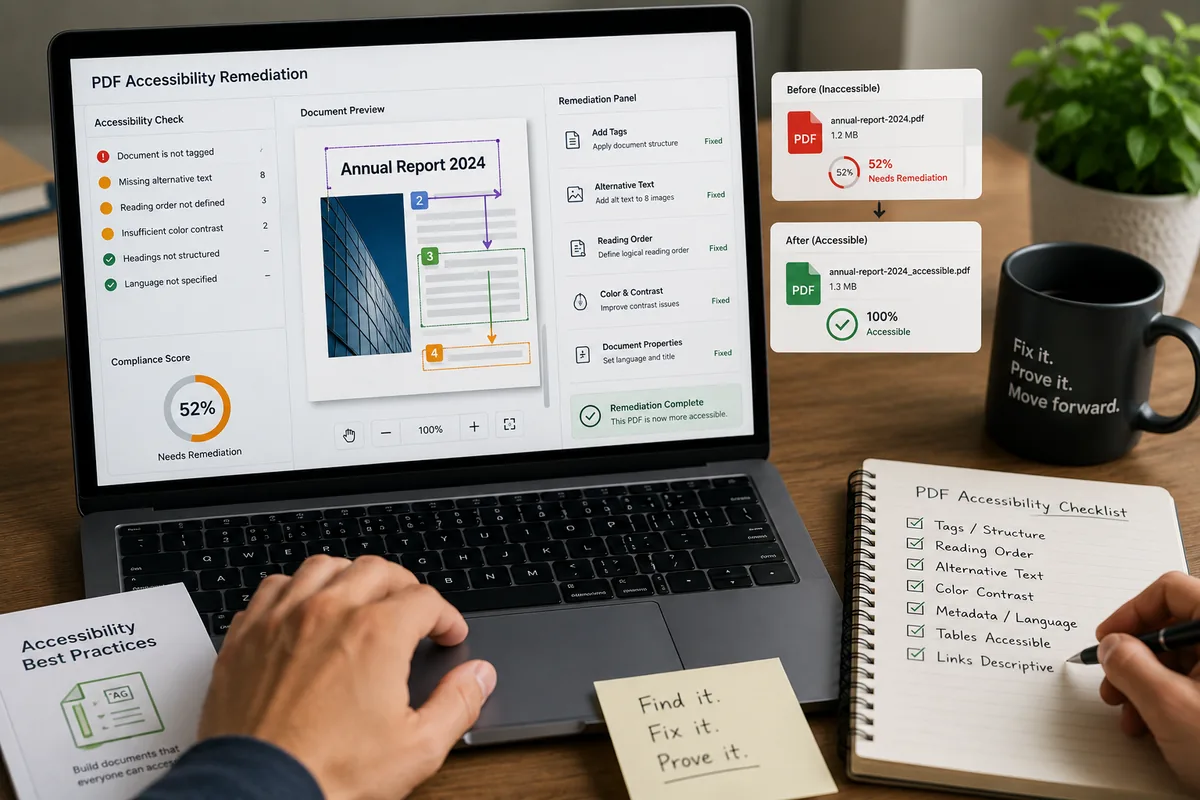
- No tag structure at all. The document has no semantic markup, so assistive technology has no headings, lists, or paragraphs to navigate.
- No text layer. A scanned document is an image. A screen reader finds nothing to read. This is the most severe and most common failure in older archives.
- Missing document language. Assistive technology cannot determine which pronunciation rules to apply.
- Images without alternative text. Same failure as on the web, in a container people forget to check.
- Unlabeled form fields. A fillable PDF whose fields have no accessible names is unusable with a screen reader.
- Tables without header associations. Data tables lose their meaning when row and column relationships are not declared.
Judgment calls that require a human:
- Whether the tag structure reflects the document’s real hierarchy, rather than merely existing
- Whether reading order matches the visual order, which multi-column layouts and sidebars routinely break
- Whether alternative text on a chart conveys what the chart shows
- Whether a complex table is genuinely comprehensible when read linearly
This mirrors the split across accessibility work generally. Automated detection covers roughly a third to 40 percent of issues, and the W3C is explicit in its guidance on evaluating accessibility that “no tool alone can determine if a site meets accessibility standards. Knowledgeable human evaluation is required.”
Step 1: Build the inventory
You cannot triage a library you have not counted.
A full-site crawl that follows links to documents will surface what you actually publish, which is almost always more than the team expects. What you want out of it is a list of every document, where it is linked from, and the structural signals above.
Expect the number to be uncomfortable. A mid-sized college commonly publishes several thousand documents, and a county with an active public-meeting calendar accumulates hundreds of agendas and minutes a year without anyone deciding to.
Step 2: Triage by current use, not by age
The instinct is to sort oldest first and start deleting. Resist it. Age is a poor proxy for risk; a 2018 financial aid form still linked from the current aid page matters far more than a 2024 press release nobody reads.
Sort into four tiers:
| Tier | What belongs here | Action |
|---|---|---|
| Tier 1 | Documents tied to a service someone needs now: application forms, financial aid materials, current catalogs, permit and registration forms, meeting notices | Remediate or convert first |
| Tier 2 | Current informational documents: program sheets, policies, handbooks, fact sheets | Remediate, or convert if frequently used |
| Tier 3 | Reference material still linked but rarely used | Remediate opportunistically |
| Tier 4 | Genuinely archived, not currently used, not linked from live pages | Assess against the narrow archived-content exception with counsel |
That last tier deserves a caution. The Title II rule does include a narrow exception for certain archived content, but it is far tighter than teams assume, and treating “old” as equivalent to “archived” is a common and risky mistake. The DOJ fact sheet on the web and mobile app rule sets out the exceptions alongside the WCAG 2.1 AA standard and the April 26, 2027 and April 26, 2028 compliance dates.
Step 3: Ask whether it should be a PDF at all
This is the highest-leverage question in the whole exercise, and it gets skipped because remediation feels like the obvious response to a remediation problem.
Federal guidance on creating accessible PDFs states that agencies should prioritize HTML and use PDFs only when necessary. That is not a stylistic preference. An accessible web page is easier to make accessible, easier to keep accessible, better on a phone, searchable, updatable without a round trip through a design tool, and it does not require anyone to learn a tagging workflow.
Good candidates for conversion:
- Forms that people fill in, which almost always work better as web forms
- Program and course descriptions that duplicate content already on the site
- Policies and handbooks that change periodically
- Anything currently maintained as a Word file and exported to PDF each time it changes
Reasonable to keep as documents: material with legal or archival significance in its published form, print-designed pieces, and long reference documents people genuinely download.
Step 4: Remediate what remains
For documents that stay documents, the work is roughly this order:
- Recover the text. Scanned pages need optical character recognition before anything else is possible. Verify the recognized text is accurate rather than assuming.
- Apply tag structure. Headings as headings, lists as lists, paragraphs as paragraphs. This is what gives assistive technology something to navigate.
- Set reading order. Confirm the order matches the visual flow. Multi-column layouts, pull quotes, and sidebars are where this breaks.
- Add alternative text to images and describe what charts convey, not just that a chart exists.
- Declare table headers and associate them with their data cells.
- Set document language and title, which are quick and frequently missed.
- Label form fields with accessible names and set a sensible tab order.
- Check contrast in the design itself, which no amount of tagging fixes.
Fixing the source file is almost always better than fixing the exported PDF, because the next export otherwise reintroduces every problem. If a document is regenerated each semester, remediating the template is the difference between a one-time cost and a recurring one.
Step 5: Stop the inflow
Remediating a library while the same processes keep adding untagged documents is a treadmill.
Two controls do most of the work. Give the people who publish documents a small, concrete standard: use real heading styles, add alternative text, set the document language, and export with tags enabled. And put a check in the publishing path, so a new document gets flagged before it becomes part of the archive rather than years later.
Where GuardGrid fits
GuardGrid’s PDF accessibility detection covers the structural signals in this article: missing text layers, tagging problems, and reading order issues, surfaced alongside your HTML findings so documents appear on the same worklist instead of being invisible. Scheduled scans mean new documents get caught as they are published.
To be precise about the boundary: GuardGrid detects and reports. It does not modify your files. Hands-on document remediation, the tagging, reading order, OCR, and conversion work described above, is delivered by Revion Solutions engineers through our ADA compliance remediation service, which treats the document library as first-class scope rather than an afterthought.
For the wider program that documents sit inside, see our ADA website remediation guide and how to make a website ADA compliant. To find out how large your own document library actually is, run a free scan.
Frequently asked questions
What makes a PDF inaccessible?
The most common causes are a missing or incorrect tag structure, no logical reading order, images without alternative text, tables without header associations, missing document language, unlabeled form fields, and scanned pages with no text layer at all. A scanned document is the worst case, because a screen reader encounters an image of a page and nothing more.
How do I know if our PDFs are accessible?
Start with an inventory, because most organizations do not know how many documents they publish. Automated detection can tell you which files lack tags, lack a text layer, lack a document language, or have untagged images, which is enough to triage. Confirming that tagging is correct rather than merely present still requires opening the file and checking reading order by hand.
Should we remediate a PDF or convert it to a web page?
Federal guidance encourages prioritizing HTML and using PDFs only when necessary. For frequently used forms and information pages, converting to an accessible web page is often less work than tagging the document, and the result is better on mobile, easier to update, and searchable. Reserve PDF remediation for documents that genuinely need to remain documents.
Are archived PDFs in scope?
The Title II rule includes a narrow exception for certain archived content that is not currently used, but it is much narrower than most teams assume and it is not a blanket exemption for anything old. If a document is still linked from a live page or still tied to a service someone needs, treat it as in scope.
Can GuardGrid fix our PDFs?
GuardGrid detects PDF accessibility problems, including missing text layers, tagging issues, and reading order, so the documents appear on your worklist alongside HTML findings instead of being invisible. It does not modify the files. Hands-on document remediation is delivered as a done-for-you service by Revion Solutions engineers.