What's New in GuardGrid: October 2026
GuardGrid now connects Google Search Console and GA4, putting search, traffic and engagement data beside your accessibility, SEO and site quality findings.
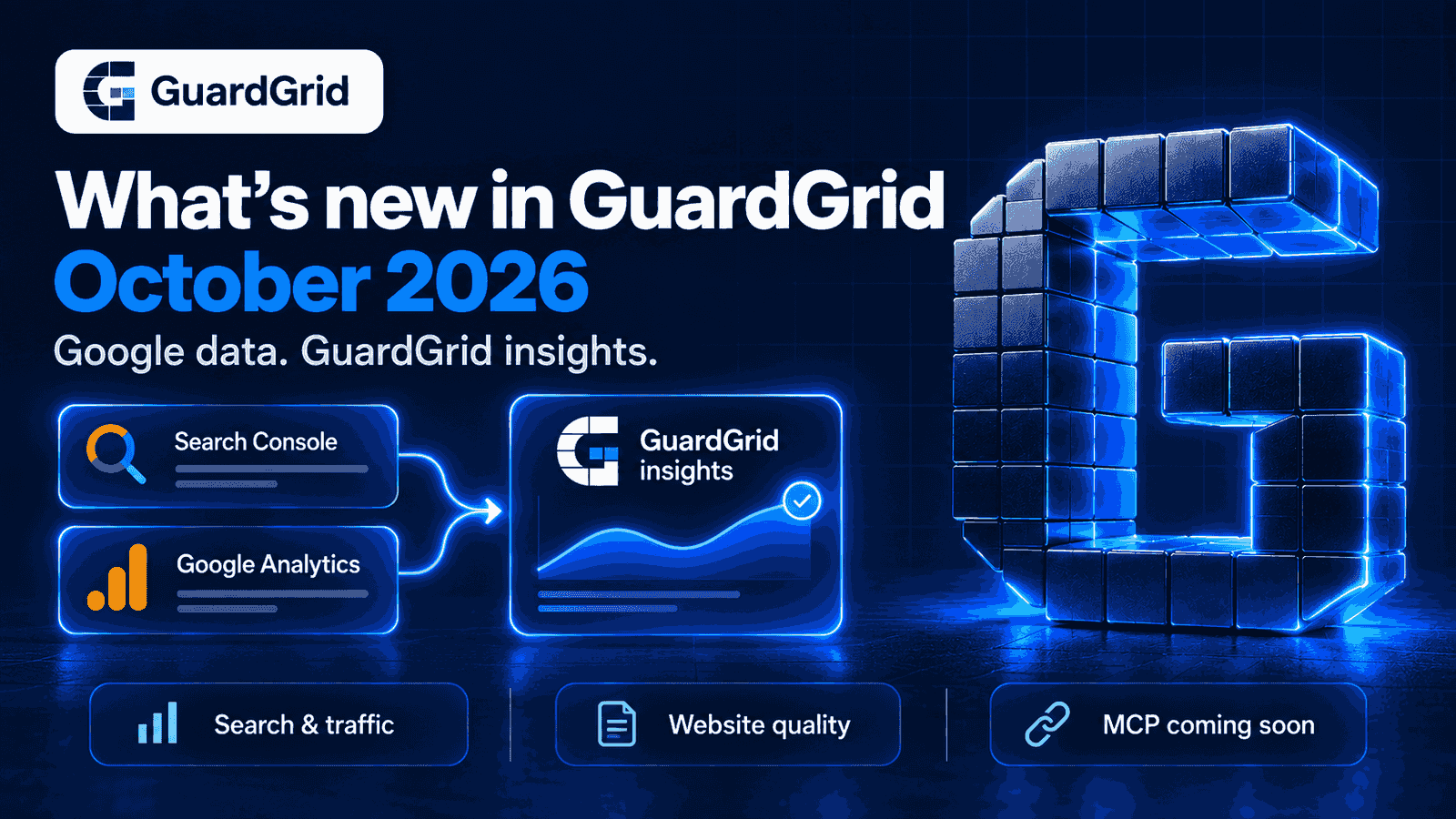
GuardGrid now connects to Google Search Console and Google Analytics 4. Search performance, traffic and engagement data now sit in the same web governance platform you already use to track accessibility, SEO, privacy and security across your site.
That means you can see how people find your website, which pages bring them in, and how that changes over time, without leaving the tool where your site quality findings already live. Since the September digest, this is the headline change, alongside a redesigned dashboard, better broken link checks and updated accessibility reporting. Everything below except the MCP preview is already in your account.
Search performance, connected
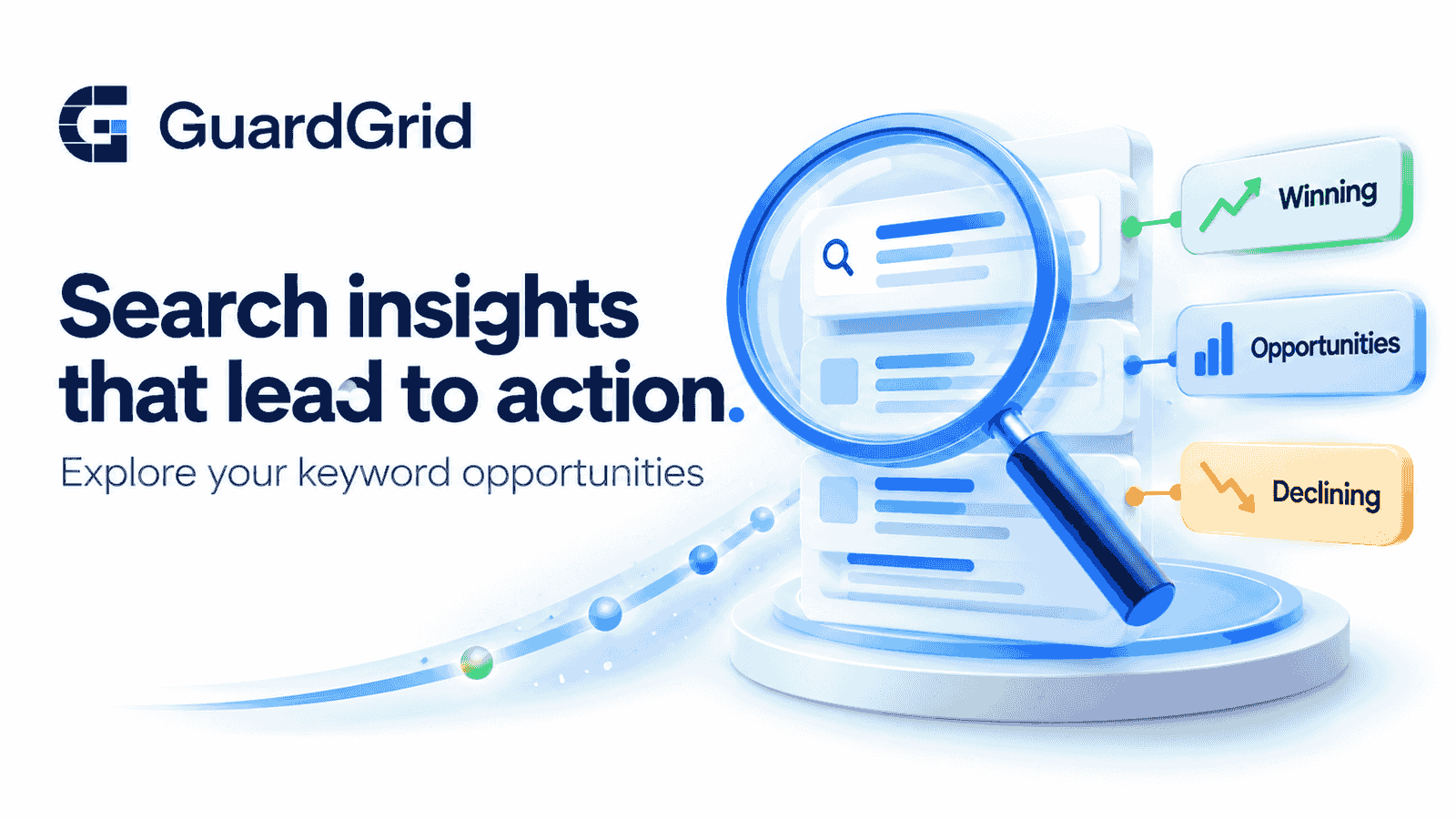
Connect Google Search Console to explore the queries and pages bringing people to your website. Clicks, impressions, click-through rate and average position are all available in the redesigned Keywords workspace.
GuardGrid helps you identify:
- Search queries gaining or losing momentum.
- Opportunities where your site already has visibility.
- Queries with a lower click-through rate than your site’s own performance suggests.
- Multiple pages appearing for the same query, so you can review how they work together.
Where matching page evidence is available, GuardGrid connects a search opportunity with the site audit findings for that same page, so a ranking question and a technical problem stop being two separate investigations.
A clearer picture of your traffic
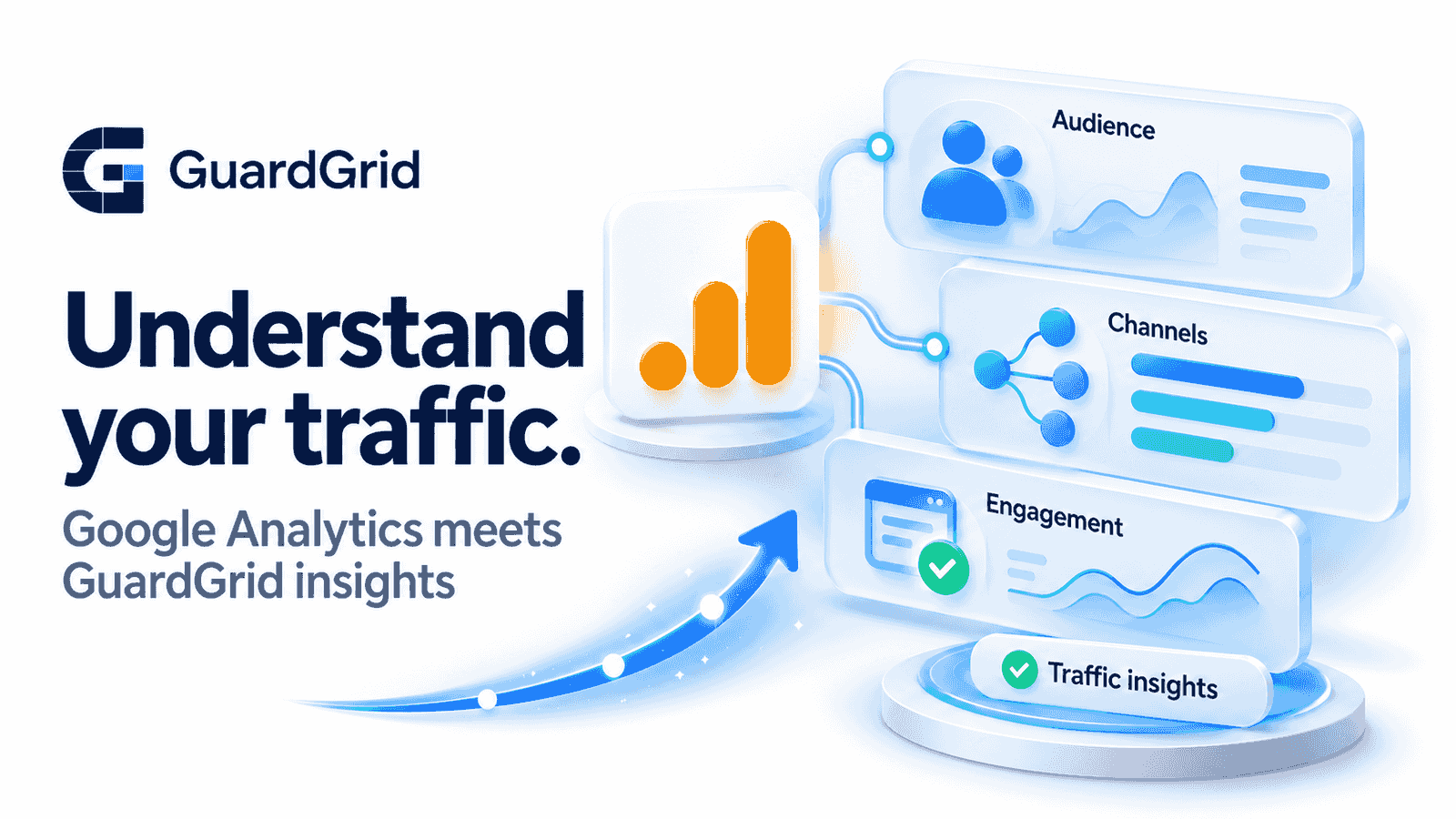
Connect Google Analytics 4 to review users, sessions, page views, engagement, landing pages and traffic channels.
Traffic insights highlight meaningful changes in overall traffic, organic search, engagement and landing page performance. Date ranges and data availability labels make it clear what each comparison actually covers, so a short reporting window is never mistaken for a drop.
Google metrics and GuardGrid analysis are labeled separately throughout. You see the numbers Google reported and, next to them, the evidence behind any GuardGrid insight.
Why this belongs next to your site quality data
Plenty of tools will show you search and traffic numbers. The reason to bring them into GuardGrid is prioritization. A page with an accessibility barrier and no visitors is a different problem from the same barrier on your highest traffic landing page, and until now those two facts lived in two different tools.
Severity still comes first. A critical accessibility or security finding is worth fixing whether or not the page draws traffic. What the Google data adds is ordering within everything else. That ordering matters most on a large higher education site, where a small web team is responsible for thousands of pages across many departments, which is the work we do every day through our sister brand, College Inbound. If you would rather have someone work through that list with you, our SEO services start from exactly this data.
A redesigned dashboard
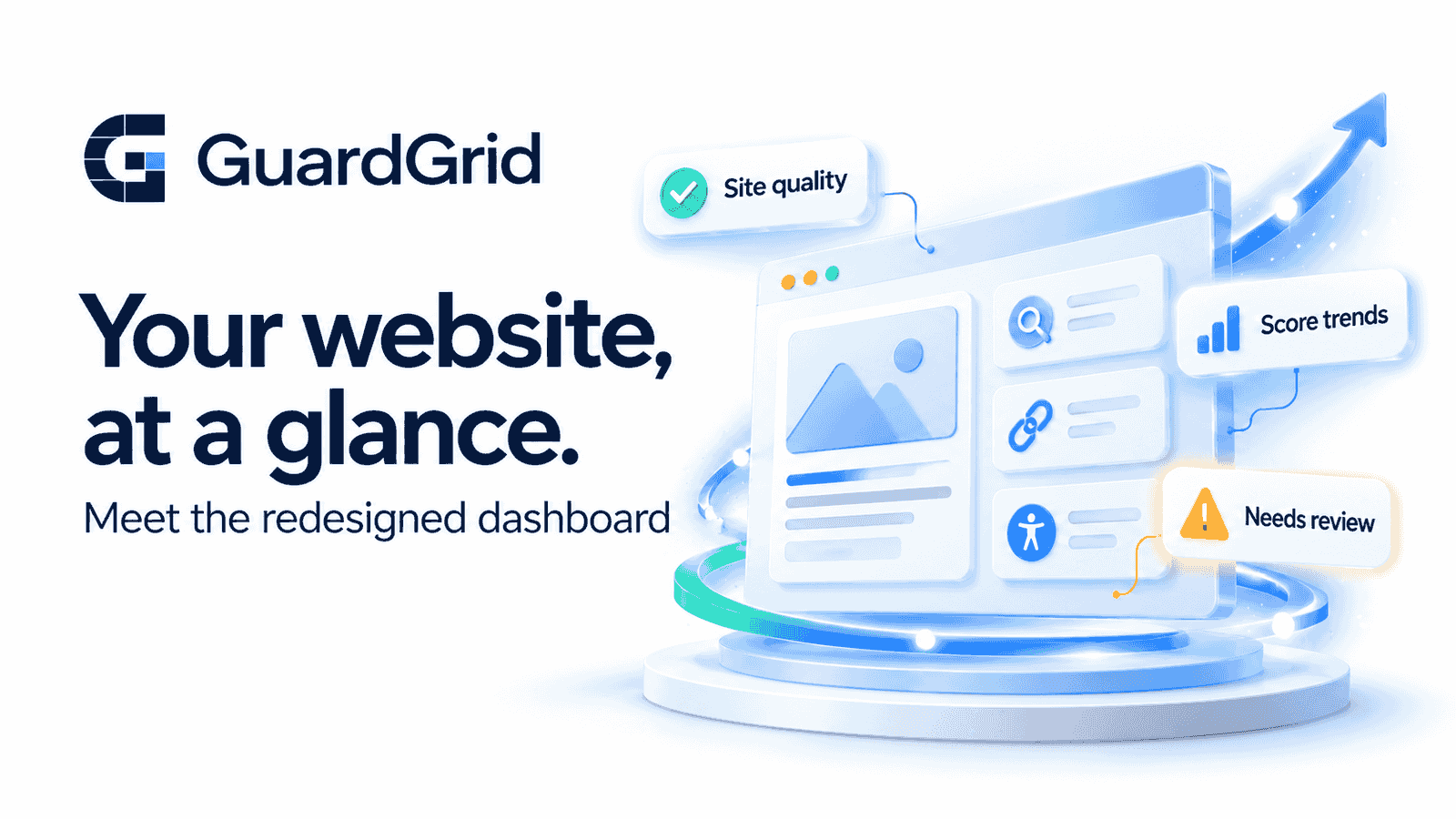
The project dashboard has been rebuilt around site quality metrics, score trends over time and the items that need attention, with direct links into the workspace where each one is handled.
Better broken link checks
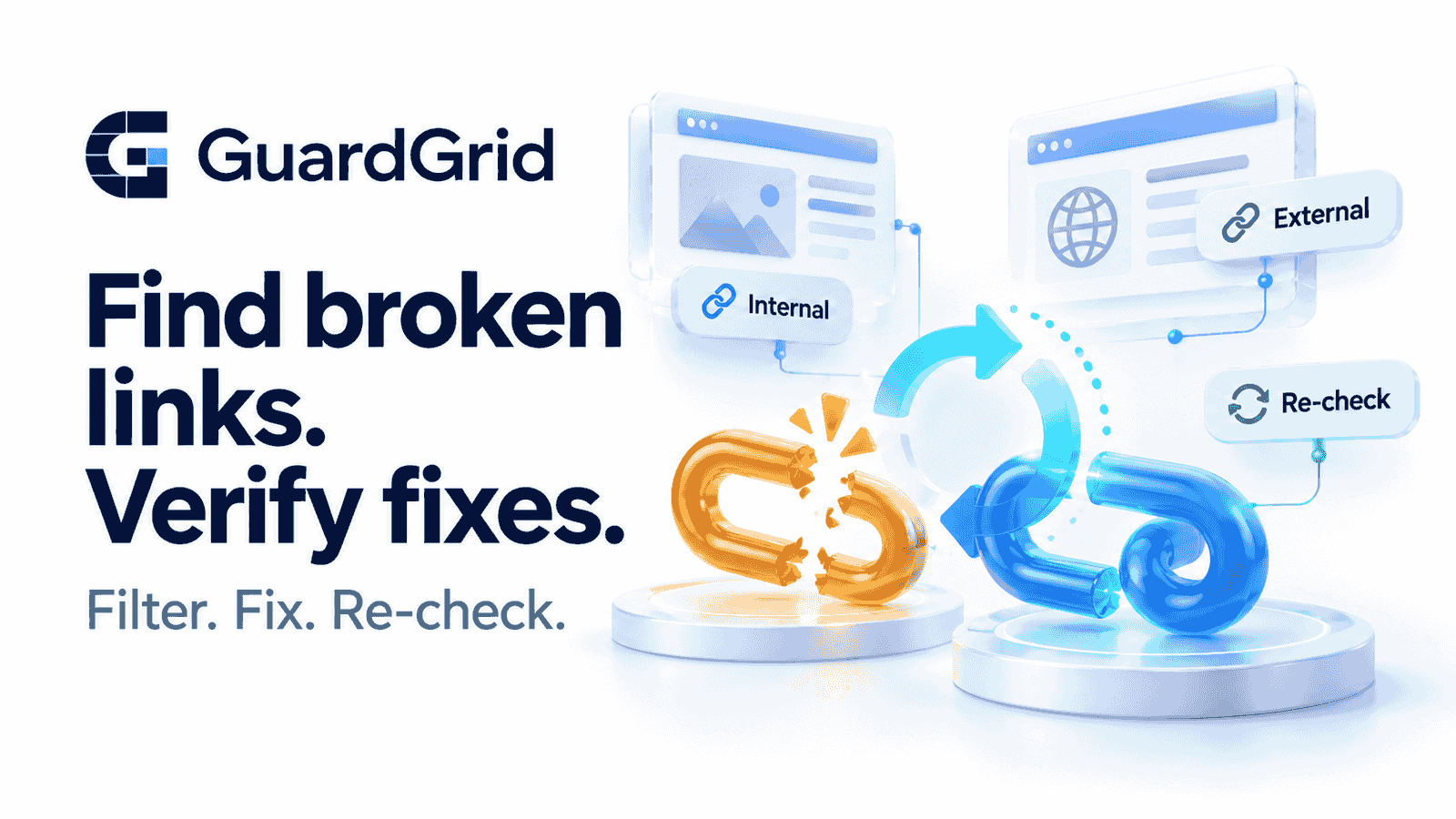
You can now filter internal and external links separately, then re-check the current source page and destination to confirm a fix actually landed. The re-check reads the live page rather than the stored scan result, so a link you repaired stops appearing on the list.
Updated accessibility reporting
The VPAT and ACR assessment workflow has been improved, and reports export to PDF, Word and HTML for review, internal sign-off and sharing with procurement.
Automated testing can prove that a specific criterion fails. It cannot prove that every criterion passes, which is why the assessment workflow is built around review rather than a one-click certificate.
Coming soon: GuardGrid in your AI assistant
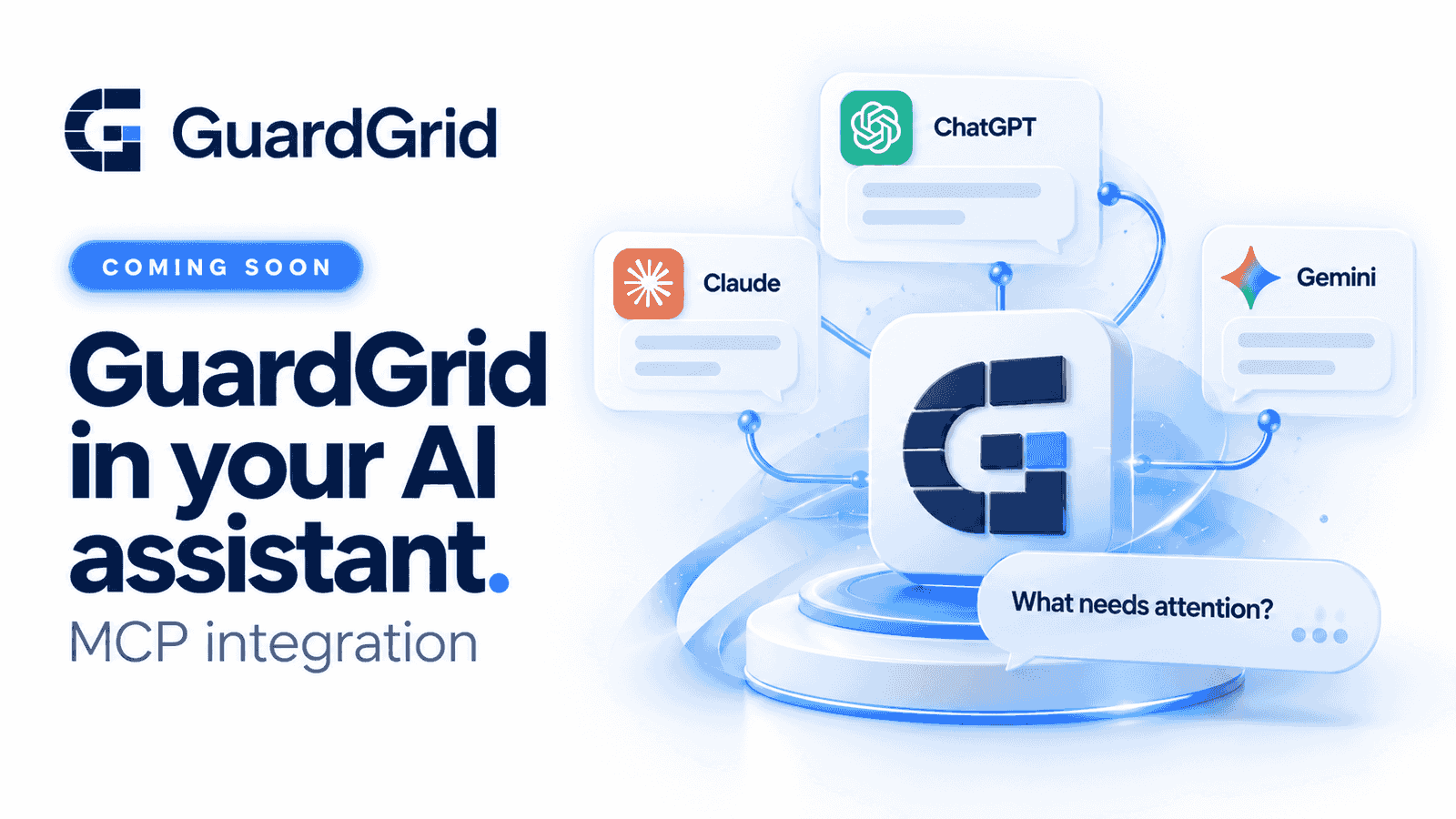
We are building an MCP integration to connect GuardGrid to AI assistants such as ChatGPT, Claude and Gemini. The goal is to ask questions about your website, explore findings and review priorities using your own GuardGrid data, from the assistant you already use.
This is in development and not available yet. More when it ships.
How to connect your Google accounts
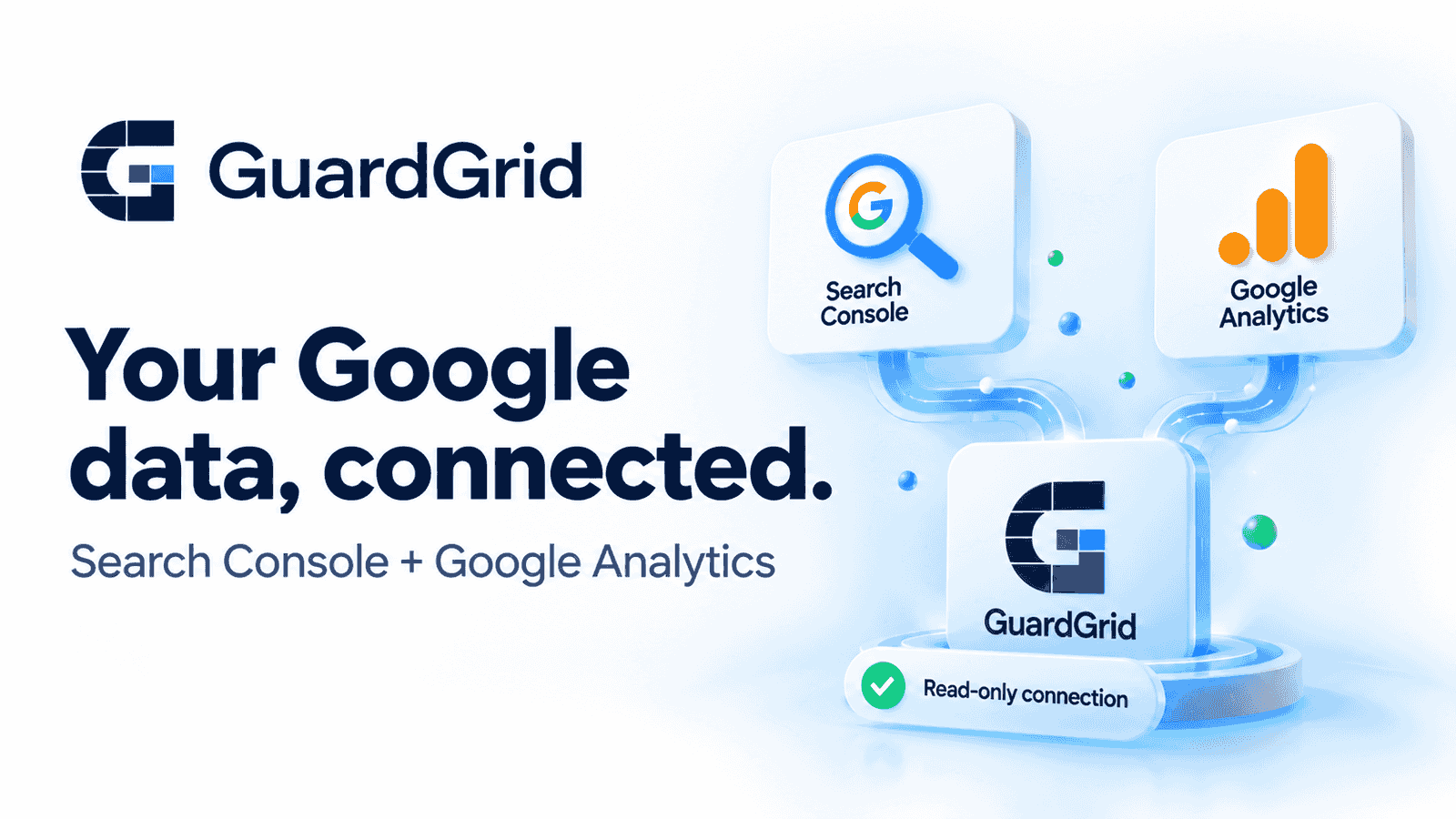
Everything happens on the Integrations page, and GuardGrid only ever reads from your Google account. It never changes anything there.
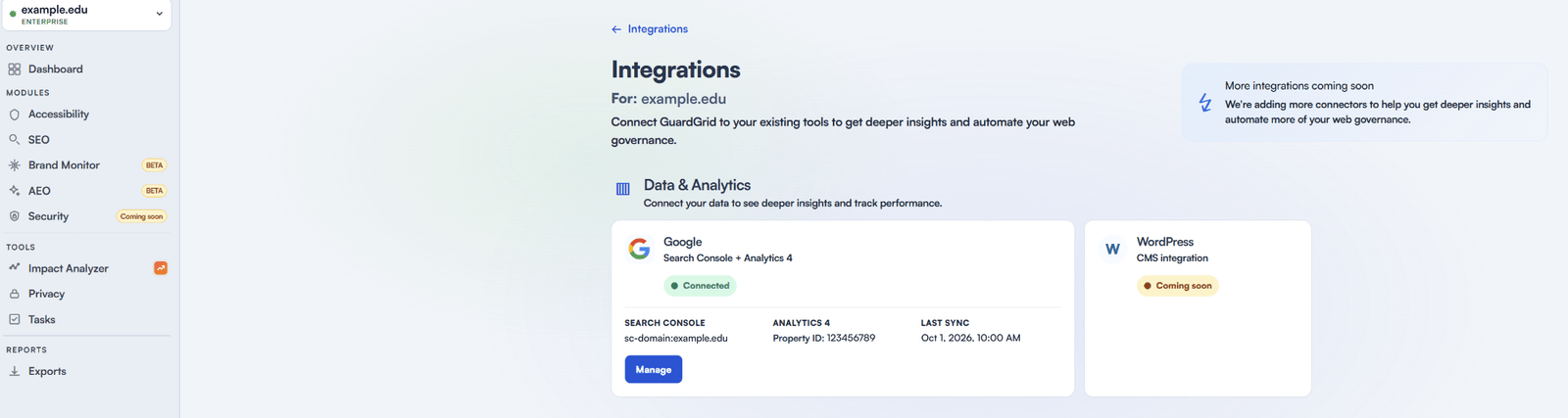
The property in the screenshot is already connected, which is why its Google card shows a Connected badge and a Manage button. Before you connect, the same card reads Not connected and offers a Connect button.
- Sign in to GuardGrid and choose the website you want to connect from the property switcher at the top of the sidebar. Google connections are set up per property, and the Integrations page header confirms which one you are working on.
- In the lower group of the sidebar, below Team and Billing, open Integrations.
- In the Data & Analytics section, find the Google card, labeled Search Console + Analytics 4, and click Connect. If the card says to ask an administrator, someone with administrator access on your account needs to do this step.
- Click Let’s get started, then Add another Google account. That is the button that sends you to Google, even for your first connection. Google asks you to approve read-only access to Search Console and Analytics in a single consent step.
- Back in GuardGrid, choose your properties. The Search Console property that matches your site and the Google Analytics 4 property are selected on the same screen. Click Continue, review the summary, then click Connect and start sync.
- Open the SEO workspace and review the Keywords and Traffic tabs.
Data appears once Google returns it for the selected property. Recent data is collected first, and older history fills in over later sync passes. The availability labels in each view tell you what the current range covers.
See it in your account
GuardGrid customers can connect their Google accounts today. Log in to get started, or book a demo if you would like a walkthrough first. Not using GuardGrid yet? Run a free scan of any page, then compare plans. Need help getting connected? Reply to the newsletter email, or contact us, and we will walk you through it.